Find Your Way Around the Command Center
The Command Center is MesoMetric's home screen. It opens when you start the app. Every other screen is reached from here.
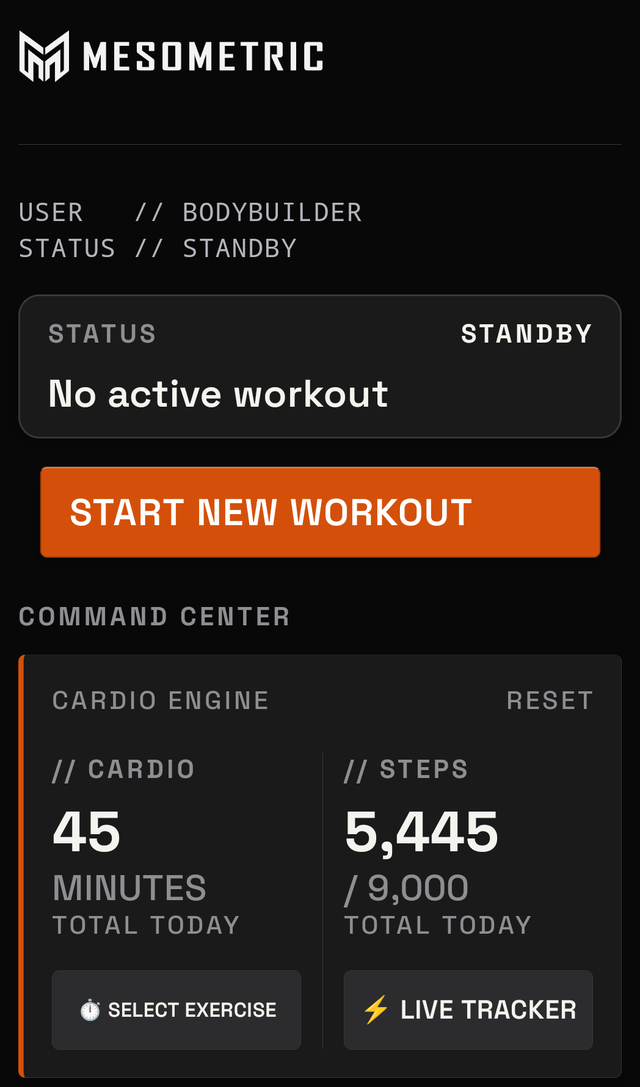
The screen contains the following, from the top down.
Status lines
Two lines at the top show your name and the current state.
STATUS // STANDBY shows when no workout is running. STATUS // ACTIVE shows when one is running.
Below that is a panel showing one of two states:
- No active workout — no workout is running.
- Active workout in progress — a workout was started and not finished. Tap the panel to return to it.
Starting a workout
START NEW WORKOUT sits below the panel. It appears only when no workout is running.
When a workout is unfinished, Discard Workout appears instead. Tap the panel above it to return to the workout.
Cardio Engine
Cardio means walking on a treadmill, riding a bike, or using a rowing machine.
This card shows two numbers for today:
- // CARDIO — how many minutes of cardio you did
- // STEPS — how many steps you took during cardio, next to your step goal
Two buttons sit under those numbers:
- ⏱️ SELECT EXERCISE — pick a machine and enter what you did
- ⚡ LIVE TRACKER — start a treadmill walk that counts steps
These steps count cardio only. They are not your phone's all-day step count.
Your training grid
A row of squares shows the last several weeks. Each square is one day. A square fills in on a day you trained.
To switch what the squares show, tap Training or Cardio above them.
If the grid is unused, tap START TRAINING GRID.
The three wide cards
Three wide cards sit below the grid:
- Performance — recent training volume, and whether it is rising or falling
- Last Session — the last workout you finished. Tap the card to open it
- Routines — your saved workout plans
Quick access
Below those are smaller tiles. Each shows a short summary. Tap a tile to open it.
| Tile | What it holds |
|---|---|
| Check-in | Progress photos and where you are right now |
| History | Every workout and cardio session you finished |
| Meals | What you ate today |
| Foods | Your own saved list of foods |
| Weight | Your body weight over time |
| Body Log | Aches, pains, and how you feel |
| Body Measurements | Tape measurements, like your waist or arms |
Log Recovery sits under those tiles. It records a sauna, a cold plunge, or stretching.
Recovery means anything you do to help your body feel better after training.
At the bottom
Three text links sit at the bottom:
- Daily Export — sends what you did on one day, or across several days
- Coach Report — puts together a summary for a coach
- Settings — your units, your name, spare copies of your data, and more