How to log recovery
Recovery means work done around training, such as a sauna, a cold plunge, or stretching.
There are two ways to log it. They save different data.
The two ways
| From the Workout Summary | From the Command Center | |
|---|---|---|
| Attached to a workout | Yes | No |
| What you did, and for how long | Yes | Yes |
| Notes | No | Yes |
| Extra details | No | Yes |
| When it is available | Immediately after a workout | Any time |
Use the Summary to attach recovery to the workout you finished.
Use the Command Center to record notes and extra details, or to log recovery outside a workout.
Log recovery on its own
On the Command Center, tap Log Recovery.
- Tap what you did.
- Enter the minutes in DURATION (MIN). This is optional.
- Fill in any extra boxes that appear.
- Add Notes. This is optional.
- Tap Save.
A recovery type must be selected first. Save stays greyed out until one is.
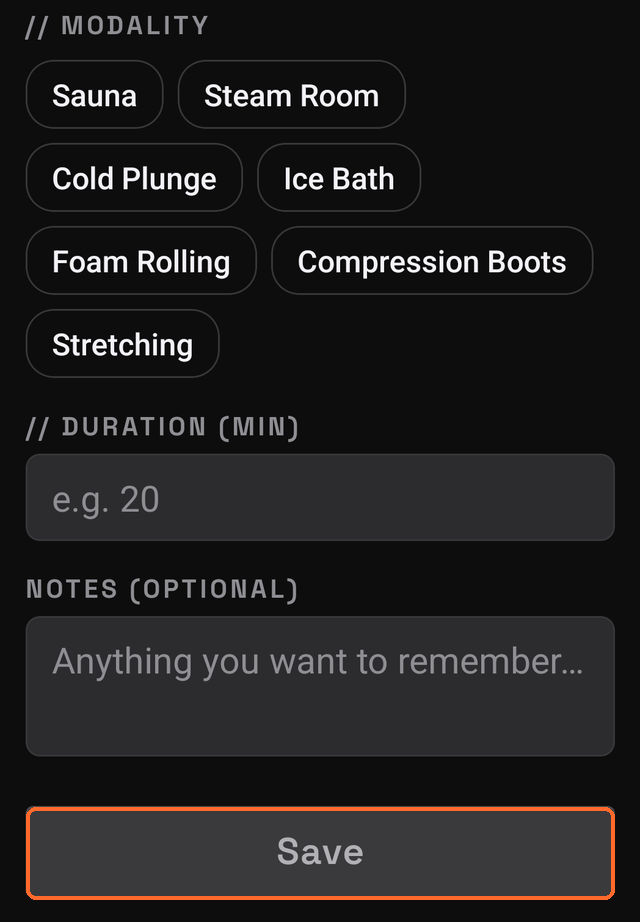
The options are Sauna, Steam Room, Cold Plunge, Ice Bath, Foam Rolling, Compression Boots, and Stretching. They are listed under MODALITY, meaning the kind of recovery.
The extra boxes depend on the type
Each type shows its own extra boxes. All are optional.
| What you did | Extra boxes |
|---|---|
| Sauna | Temperature, Rounds |
| Steam Room | Rounds |
| Cold Plunge or Ice Bath | Water temperature, Body area |
| Foam Rolling | Body area, Pressure |
| Compression Boots | Pressure level, Zone |
| Stretching | Body area, Type |
Chips toggle on and off. Tap a selected chip to clear it.
Temperatures are in °F only. The unit setting does not change these boxes.
Log recovery from the Workout Summary
- Finish your workout so the Summary appears.
- Tap one or more chips under Recovery activities (optional).
- Enter the minutes for each. This is optional.
- Tap Done.
Each selected chip saves as its own entry, attached to that workout. Selecting Sauna and Cold Plunge saves two entries.
Tapping a chip again clears it. A cleared chip is not saved, even if minutes were entered.
This path saves the type and the duration only. It does not save notes or extra details.
Where recovery appears
- On a workout's detail page, under Recovery, when logged from the Summary
- In History, counted in that workout's row
- In a Coach Report, when Recovery is switched on. It starts off
- In your backup
Limitations
Recovery cannot be changed or deleted after saving. There is no recovery history screen in the app.
Recovery logged from the Command Center is never attached to a workout. To attach it, log it from the Workout Summary.