How to create a Coach Report
A Coach Report is a summary of your training over a date range.
Create a Coach Report
- On the Command Center, tap Coach Report.
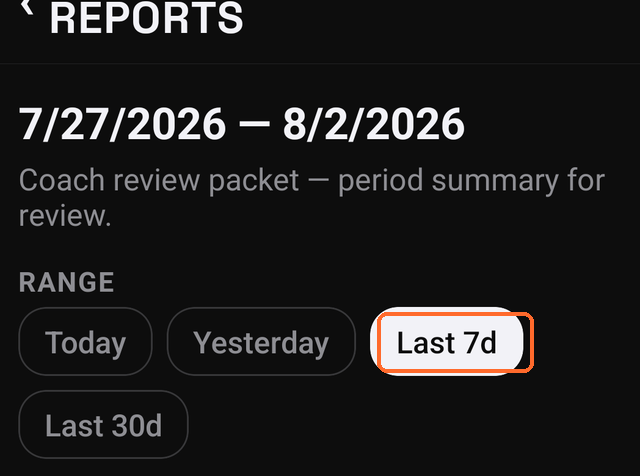
- Pick a range.
- Pick what to include.
- At the bottom, tap Coach Report.
- Choose a destination.
Step 2 has four options:
- Today
- Yesterday
- Last 7d — the last week
- Last 30d — the last month
The default is Last 7d.
What to include
Four sections start on:
Check-in · Weight · Meals · Workout
Three start off:
Photos · Recovery · Body Log
- Recovery means work done around training, such as a sauna, a cold plunge, or stretching.
- Body Log records aches and how your body feels.
Tap a section to turn it on or off.
These three reset to off each time the screen opens.
Adding photos
To send photos, turn on Photos and Check-in. Photos come from your check-ins.
MesoMetric includes up to 14 photos, newest first.
If the date range holds more than 14, MesoMetric states this and suggests a shorter range.
What the report contains
The report has four sections.
Period summary. Days trained, number of workouts, check-ins, weigh-ins, and the change in body weight.
Cardio summary. Total cardio, split between cardio on its own and cardio inside a workout.
Indicator lifts. For any lift trained at least twice, the heaviest set the first time and the last time.
Session detail. For each workout, what you planned against what you logged.
The report contains no grades and no scores.
The athlete name
The top of the report uses your name from Settings → Athlete. If it is blank, the report says "Athlete".
If there is nothing to send
One of two messages appears.
Every section is switched off.
Nothing was logged in that range. Choose a longer range.