How to back up your MesoMetric data
MesoMetric keeps your information on your phone.
A backup is a spare copy saved elsewhere. A backup made beforehand is the only way to recover your history if the phone is changed or lost.
Make a backup
- On the Command Center, tap Settings.
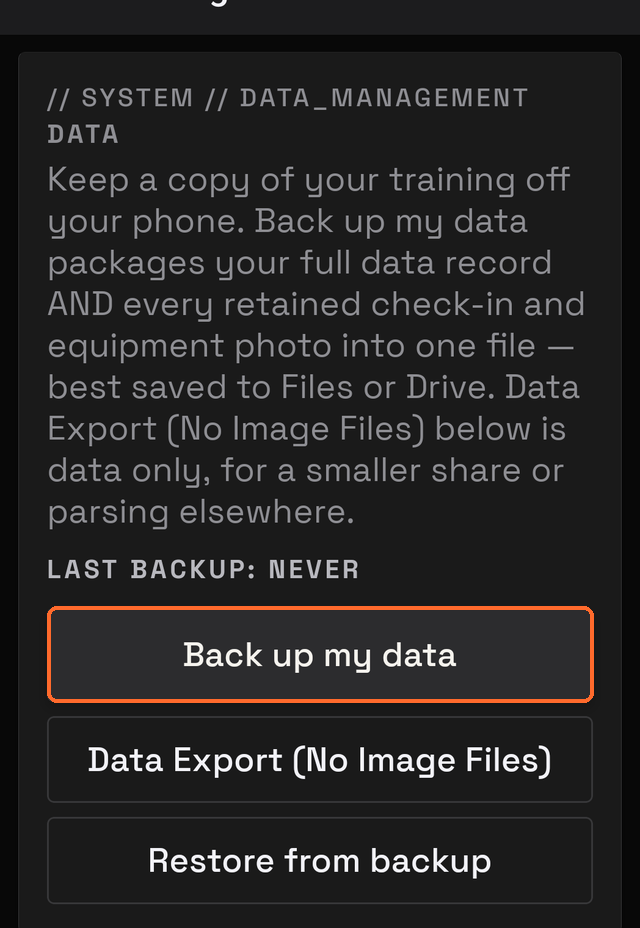
- Scroll down to the Data box.
- Tap Back up my data.
- Read the message, then tap Continue.
- Wait while the button reads Preparing backup….
- Choose a destination when your phone asks.
Save it somewhere retrievable: Files, Google Drive, iCloud Drive, or Dropbox.
What the backup contains
The output is one backup file holding:
- all your records
- your photos — check-in photos and equipment photos
- a manifest linking each photo to its record
The records are:
- workouts and cardio
- meals and foods
- weight and tape measurements
- check-ins and recovery
- saved workout plans
- your units and athlete name
The file name starts with MesoMetric-Full-Backup- and ends in .zip.
A .zip file holds several files together as one file.
Keep the whole backup file. It holds the only copy of your photos.
Keep it somewhere private
The backup holds all your training and body information. Anyone who opens the file can read it. Save it somewhere private, not a shared folder.
If the file is big
If the backup is too large to email, MesoMetric states this and offers to save it to Files or Drive.
If photos were deleted from the phone earlier, MesoMetric states how many it could not find. Everything else is backed up.
The last-backup line
The Data box shows a line such as LAST BACKUP: 3 DAYS AGO.
Only Back up my data changes that line.
Daily Export, Coach Report, and Machine Export do not change it. None of them can be restored.
Backups are manual
MesoMetric never backs up on its own. A backup is created only when you tap the button.
Create a backup before you:
- change phones
- restore a backup
- reset the app
- uninstall MesoMetric