How to use the rest timer
The rest timer counts down your rest between sets and alerts you when it ends.
A set is one group of lifts you do in a row, and you rest after each set.
The timer sits at the top of the Active Workout screen and works only during a workout.
Start a rest
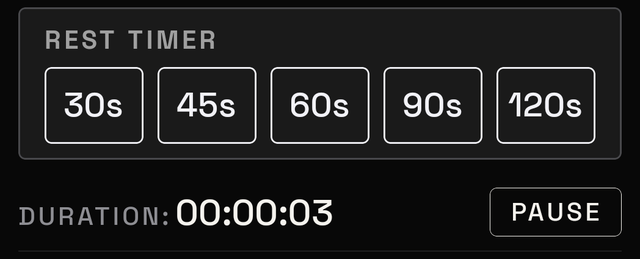
Tap one of the preset times:
30s · 45s · 60s · 90s · 120s
The "s" means seconds. 90s is 90 seconds. The countdown starts immediately.
Tap ✕ to clear it.
While it runs
| Button | What it does |
|---|---|
| Pause | Stops the count for a moment |
| Resume | Starts the count again from where it stopped |
| Restart | Starts the same rest over |
| Stop | Cancels the rest |
The full-screen timer
Tap the timer bar to open a larger view with a round countdown.
From this view you can:
- add 30 more seconds
- tap SKIP to end the rest early
- pause the timer and start it again
To return to your sets, swipe down or tap the small bar at the top.
The timer keeps counting. Closing this view does not stop it.
When it finishes
The bar reads Rest complete. Your phone plays a sound and vibrates. Tap Stop to silence it.
If your phone is silenced, you may not hear the sound.
Android phones have a setting called Rest timer alerts. Open your phone's settings and look under notifications for MesoMetric.
Leaving the app mid-rest
The timer keeps going when you switch apps or turn your screen off.
On return, MesoMetric checks how much time passed and corrects the timer.