How to log your weight
On the Command Center, tap Weight.
Save a weigh-in
- Tap + Log Weight.
- Enter your Weight.
- Add Body fat % and a note. Both are optional.
- Tap Save.
Weight is the only required field. Enter it in the units set in Settings.
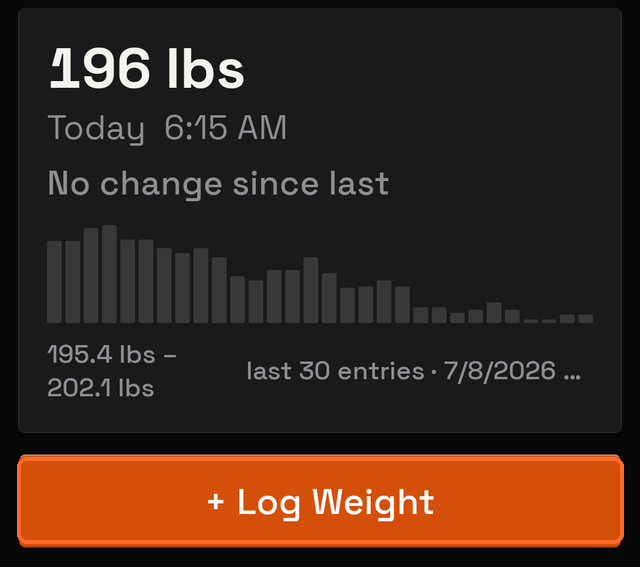
What the screen shows
After more than one weigh-in, the screen shows:
- your latest weight, in large type
- the date of that weigh-in
- the change since the previous entry
- a chart of your recent weigh-ins
The change line shows one of three states:
- ▲ — increase
- ▼ — decrease
- No change since last
MesoMetric does not rate the change. There are no goals and no colours on this screen.
After the first weigh-in:
Two kinds of rows
The list holds two kinds of row:
- weigh-ins saved on this screen
- weights entered on a check-in, marked From check-in
Tap a weigh-in to change it.
Tapping a check-in row opens that check-in. The weight belongs to the check-in.
Change or remove a weigh-in
Tap the row to change the weight, body fat, or note. The date and time are unchanged.
Press and hold a weigh-in to delete it.
Delete all logged weights sits at the bottom. It removes every weigh-in saved on this screen. It does not remove weights inside check-ins.
About body fat %
This field is optional. It accepts a number between 0 and 100.
Any other value shows "Enter a percentage between 0 and 100."